Wednesday, January 1, 2020

Two different solutions for Denoising video with AVISynth

Last year, I worked on a couple of projects that involved not just deinterlacing, but denoising. Some scenes had a fine, natural noise that I preferred to keep intact. Other scenes had so much noise it was difficult to make out the faces of the actors. Figuring out how to minimize the noise without sacrificing too much detail or looking jarringly different from the surrounding shots turned out to be a real challenge.

Here are some notes from my experimenting.

Commercial tools


There are some commercial tools for denoising, each with their own strengths and weaknesses. Here's three of the most common:

I've used Neat Video in the past, and it has some real advantages in terms of denoising strength, being able to manually select what to consider noise (if there's a large enough area of just noise in frame), and parameters to tweak. In particular, it's great at dealing with blotchy chroma (color) noise. It's really easy to overdo it, however, and sometimes it takes a lot of tweaking to remove only the noise you want.

There's also Red Giant's Denoiser III, which has a much simpler interface, and is better for even noise reduction, although not as great for dealing with truly terrible noise.

Then there's the Studio version of DaVinci Resolve. I don't own this and can't get a trial version, so I don't know how well it would perform.

If you're looking to denoise HD or higher resolution footage, I'd recommend one of the above. They're all fully GPU accelerated, focus on modern camera sensor noise, and they don't have a chance of introducing gamma or color shifts.

However, for SD interlaced video, I think AVISynth has some better options.

TemporalDegrain2


Let's start with TemporalDegrain2. With low to medium grain/noise, the default settings are usually fine. It uses many of the same requirement filters as QTGMC, so if you've already got QTGMC set up, you should be able to use TemporalDegrain2 at defaults. The one setting to pay attention to is grainLevel=True. Setting this to False may give better performance on some footage, so try it both ways to check.

Here's a brightened capture of some noisy SD footage (Note that I haven't done a pixel aspect ratio correction, so the image is slightly squashed):


And here's the same footage passed through TemporalDegrain2 at grainLevel=False:


And grainLevel=True:


The difference is subtle in this case, but definitely there.

More detailed instructions are included in the .avsi script if you want to play around with things, but in my experience, the defaults do the best job at denoising without undesirable artifacts.

Oh, and one more important thing: TemporalDegrain2 has a 64-bit version for AVISynth.

SMDegrain


Next, let's look at SMDegrain. If you thought QTGMC has a lot of options...

Using the recommendations for a starting point from the documentation:

SMDegrain(tr=2,thSAD=250,contrasharp=true,refinemotion=true,lsb=true)
Gives this result:


Not very impressive in this case. Let's try the recommendation for "dark scenes", and trigger the interlaced switch so the denoising can be done prior to calling QTGMC:

 SMDegrain(tr=3,thSAD=300,contrasharp=true,str=2.0,refinemotion=true,lsb=true,interlaced=true)
Which gives us this:


Better, but still not great. Again, this is a fairly noisy clip. Depending on the type/amount of noise, the defaults might be much more effective.

Now, let's look at the option for "grainy sources". I like to call this the "kitchen sink" option:

pre=fluxsmootht(3).removegrain(11)
SMDegrain(tr=6,thSAD=500,contrasharp=30,prefilter=pre,str=1.2,refinemotion=true,lsb=true)
What's happening here is that in addition to increasing the strength of denoising, we've added a prefilter. This is designed to blur the image first when calculating what detail to preserve, so the denoise can be that much more aggressive. If you just use a number here, SMDegrain will do some variation of a simple blur for it's initial calculations. In this case, we're using more intensive solutions. Here's the end result:


Now we're talking. However, you should know some things about the Kitchen Sink method:
  • If you use the interlaced option it'll distort, so don't do that. You could use SeparateFields() first and AssumeFieldBased() plus Weave() after to try to preserve the interlacing while reducing the amount of time it takes to denoise, but in my experience, that makes the processing look crappier/lower resolution. Either use it after QTGMC, or use it before and accept that the motion may not always look quite right.
  • You can do multiple passes, but since SMDegrain is 32-bit only, you're realistically limited to 2 passes without render freezes/crashes due to memory issues.
  • Yes, SMDegrain is available in 64-bit for VapourSynth (via havsfunc, which also contains a port of QTGMC). There, you're more likely to be able to squeeze in 3 passes, but it'll be excruciatingly slow if you do that, and can end up overprocessing the image. Also, you'll need to pay attention to the documentation for the various options, as they sometimes use different capitalization than on AVISynth. Why? Basically, VapourSynth scripts use Python, and Python is case-sensitive. Also, you have to re-write the fluxsmootht and removegrain entries in a different way, and remove the lsb=true option (because VapourSynth doesn't need it).
  • In footage with significant motion, you may notice more of a smearing effect, similar to the old-school electronic denoising on the laserdisk versions of the original Star Wars trilogy.
  • If you use multiple passes, you can end up with a dithering effect that's very noticeable on dark footage.
Basically, there are some drawbacks. The good news is that you can get very close to the same results with a line like this:

SMDegrain(tr=6,thSAD=500,contrasharp=0,str=1.2,refinemotion=true,lsb=true,interlaced=true)
Which gives this:


This is easier to run, has less of a smearing effect, works better with interlaced footage, and I've removed the built-in sharpening (Contrasharp) so I can use LimitedSharpenFaster later instead.

For those interested, here's a condensed (AVISynth+) version of my .avs script using the above options:

SetFilterMTMode("QTGMC", 2)
SetFilterMTMode("f3kdb", 2)
AVISource("DV Noise Test intro.avi", audio=true)
ConvertToYV12()

SMDegrain(tr=6,thSAD=500,contrasharp=0,str=1.2,refinemotion=true,lsb=true,interlaced=True,Globals=2) 
QTGMC( Preset="Slower", EdiThreads=3 ) 
#--------------(Optional) Reduce chroma noise----------------------
#f3kdb(grainY=0, grainC=0, sample_mode=1)  
Prefetch(10) 
Since the original clip is DV video, I've done a colorspace conversion to YV12. If you're using a Digibeta file or ProRes capture, you might be able to get away without it, or you could convert to YUY2 instead.


Some other info that might be worth knowing:

SMDegrain has a variable called "globals" that allows you to change the way motion vectors are used. Basically, the globals are motion vector calculations, which can be either generated each time SMDegrain is called (default), passed through, or used from previous passes. In other words, if you want the same patterns of noise to be denoised in subsequent passes, you can use:

SMDegrain(tr=6,thSAD=500,contrasharp=0,str=1.2,refinemotion=true,lsb=true,interlaced=true,Globals=2)

for the first pass and:

SMDegrain(tr=6,thSAD=500,contrasharp=0,str=1.2,refinemotion=true,lsb=true,interlaced=true,Globals=1)

for the second. While doing so can reduce processor load a bit, it's still generally not a good idea to do three or more passes, even with globals=1.

From the documentation, here's how each number option works:
  • 0: Ignore globals, just process
  • 1: Read globals and Process
  • 2: Process and output globals
  • 3: Output globals only, don't process 

  • Doing a globals=2 pass and then a globals=1 pass results in the following:


    Which is pretty darn clean. You may still notice some artifacts on fast-moving objects:


    but that's true of any SMDegrain setting that I've tried. TemporalDegrain2 does better with these artifacts, but not so well with overall noise in noisy footage, at least at defaults:


    Oh, and if you still have chroma noise after this, you might want to try messing with something like f3kdb.

    Other notes


    For comparison's sake, here's the best results I could get using Magic Bullet Denoiser III and Neat Video 5, applied to a version of the video already deinterlaced with QTGMC. Yes, both have ugly watermarks due to them being trial versions.


    I could probably get Neat Video looking a bit better with some more tweaking, but this is what I would consider an acceptable denoise from it. If you look closely, you'll notice that Denoiser III retains some noise in this case, while Neat Video removes more, but has a slightly plastic look. This is the tradeoff in denoising - removing *all* grain often removes surface details you might want to keep. For an extreme example of this, check out the Predator Ultimate Edition Blu-Ray.


    I may update this post later, but I think that's it for now. Post a comment if you have a question or correction.

    Monday, June 10, 2019

    AVSMeter - an essential tool for working with AVISynth

    As part of the process for making tutorials about various AVISynth options, I often have to benchmark different settings and/or plugins. An easy way to do this is to simply run .avs scripts through FFMPEG.

    However, sometimes this doesn't really show how efficient a script is being or not. If there's a bottleneck happening somewhere in the script that's holding you back from better performance, it can be hard to isolate it from the overhead that FFMPEG introduces. Plus, I don't really need to make a new rendered video file for every change in options when I'm trying to benchmark plugins.

    Thankfully, there's a better way. The ever-awesome Groucho2004 has written a tool for this purpose called AVSMeter. It has pretty much everything that you would want in an AVISynth benchmarking tool, but it also serves as one of the best AVISynth diagnostic tools as well.

    It has both a 32 and 64-bit option so you can compare between different versions of AVISynth, measurements of everything from memory usage to number of threads used. It has a function for checking your AVISynth installation to make sure that both the core program and all plugins are set up correctly. And of course, like any good benchmarking tool, it has comprehensive logging - including the ability to log to .csv files for you spreadsheet folks.

    The included documentation does a really good job of explaining all the different features of AVSMeter, so I'm just going to post up a tutorial video about how to install and use it below and leave it at that.

    BIG DISCLAIMER: This process may not work, may crash, or do other things to your system. Virus scanning all files is strongly encouraged, but not a 100% guarantee of safety.

    You have been warned.


    Friday, May 10, 2019

    On ergonomics and carpal tunnel syndrome: a dictated post.

    This blog was started as a way for me to talk about my experiences with video editing. I've posted up a bunch of different tutorials over the years, workflow tests, and introductions to different pieces of software.

    However, the one thing that I haven't done is talk about the physical toll of working (and playing) on a computer all day.

    I've developed issues with my posture over the years that have aggravated some lower back problems. This isn't the end of the world, as doing a few simple exercises can strengthen muscles that can counterbalance this effect. I'm working on doing just that right now.

    Unfortunately, one area where not taking care of yourself can be a real problem is your wrists. For those unfamiliar with the condition, carpal tunnel syndrome is a RSI, or repetitive stress injury. It's primarily due to grasping for long periods of time and/or performing repetitive motions with your fingers like typing. The symptoms start with swelling and soreness in your wrist and hands, then progress to tingling and finally numbness

    I first started having symptoms of carpal tunnel syndrome right around the time I entered college, and it was primarily due to playing video games and working on the computer for long hours. Probably my biggest regret in life is that I didn't take it seriously enough.

    Most people who develop carpal tunnel syndrome symptoms recover entirely through a brief treatment of anti-inflammatory drugs and rest. However, if you continue the damaging behavior while you are recovering, the injuries can compound, and you can end up with a condition like mine where it never really goes away.

    Thankfully, my symptoms have never gotten bad enough to require surgery, but they've held me back from doing a number of different jobs that could have made me a lot more money than I'm currently making. About a month ago, my symptoms started getting significantly worse. It turns out that holding up in iPad for hours at a time can be just as bad as performing a death grip on a mouse.

    So, I find myself back in the same position again.

    In the past, I've tried all of the noninvasive treatments for carpal tunnel syndrome. I've done the course of anti-inflammatory drugs, used a wrist brace, even tried acupuncture. The wrist brace didn't really help, the anti-inflammatory drugs helped alleviate the immediate symptoms, but not the overall condition. Acupuncture and massage helped about as much as the drugs.

    However, the one bright spot is that the technology that in some ways has contributed to the condition in the first place is now helping me to reduce the repetitive motions that aggravate the condition.

    I'm talking about speech-to-text software.

    Back in the early-mid 2000's, I used a program called Dragon NaturallySpeaking from time to time. It was expensive, error prone, and slow to use. Dragon is still around, and is probably much improved in its current version, but thankfully I don't need to buy it anymore. Windows 10 includes speech-to-text-software by default. It works almost exactly the same as Dragon, and it's essentially free.

    It's also what I'm using right now to write this blog post (as well as the previous post).

    Unlike voice assistant transcription capabilities that are available in Android and iOS, Windows Speech Recognition doesn't require an Internet connection, is relatively quick, and doesn't timeout after a certain period of seconds and/or words. It's definitely not perfect, but by having a local dictionary to pull from, you can add and/or retrain words to match whatever subject matter or writing style you happen to use.You also have less of a worry that your voice will be uploaded to some distant cloud storage server and kept there for eternity.

    It definitely takes some getting used to, but I find that I can write blog posts like this and all sorts of other documents fairly easily. It doesn't help with entering FFMPEG commands or writing AVISynth scripts, but it allows me to work on projects that otherwise would have been detrimental to my health.

    Speaking of health, I'm currently looking into other treatments that could significantly improve my condition. If that works, I'll either update this post or make a new one. However, for anyone who's currently suffering with carpal tunnel syndrome. I want to let people know that there are ways to get back some of the functionality that you had in the past via speech-to-text software.

    Wednesday, May 8, 2019

    Why I don't (generally) like to use wrapper programs

    Most of the comments on my videos and blog are questions about particular workflow issues. However, one of the most repeated questions outside of that has to do with why I don't use/recommend using programs like MeGUI or Hybrid.

    The simple answer is that I don't trust that they'll stay around. The history of open source software is littered with wrapper programs that were really convenient for a brief moment in time, until life or lack of interest led to the (usually solitary) developer abandoning the project. Sometimes, someone else will come along and rescue it. More often than not, though, it's just left to rot.

    This means that if you base your entire workflow around one of these programs, there's a better-than-average chance that at some point you'll either have to hunt for a replacement that doesn't exist, or learn how to use the programs that underlie the wrapper. After getting burned a few times by this, I have chosen the latter.

    Now, this is not to say that I have an inherent prejudice against all wrapper programs. gMKVExtractGUI saves a ton of time and typing when trying to extract audio from an .mkv file, and is directly recommended by the MKVToolNix devs. My main concern is that if you start by learning wrapper programs and don't really understand the fundamental way that the underlying programs work, you'll be lost at sea if something goes wrong.

    Nowhere is this more true (in my opinion) than in the case of FFMPEG.

    There are a truly massive number of wrappers for FFMPEG. Most are designed to convert consumer video files into a format that works better for media players or phones. Some are free, while quite a few others are scammy $15-$50 converter programs that spam advertisements on places like Quora. A few are actually designed for professional usage, with their primary function being to add ProRes encoding to Windows (which is not as much an issue since Adobe added official ProRes encoding to Creative Cloud video apps).

    Now, I want to make a distinction between wrapper programs and programs that merely incorporate FFMPEG. Programs like Handbrake, ShotCut and KDEnlive all use FFMPEG for exporting video, but don't exclusively rely on FFMPEG code to function. They are also projects with a long development history, dedicated teams of people who work on them, and large numbers of users.

    Here's the thing, though. FFMPEG goes through significant development, sometimes leading to new features and important bug fixes. Its main ProRes encoder in particular has had major bug fixes within the last year, as I have posted elsewhere on this blog. Most wrapper programs -- and other programs that rely on FFMPEG -- don't update their included version of FFMPEG on a regular basis. In some cases, you might be using a version that's several years out of date. If you learn how to use FFMPEG just by itself, then you can update whenever you want, and potentially troubleshoot issues that the wrapper program hasn't fixed yet.

    So, basically, that's my thought process. I completely understand that many people would prefer an all in one solution, especially for programs like AVISynth where the setup process is definitely not trivial. I just tend to gear my tutorials towards a sort of "manual transmission" philosophy because I believe that in the long run it's more helpful.

    Wednesday, February 20, 2019

    Motion Interpolation plugins in AVISynth (WIP)

    (This post is a work-in-progress. I'll be adding screengrabs, more info and eventually a video tutorial. Keep checking back if you'd like to see more, and feel free to comment if you think I've left something out.)

    I'm not generally a fan of motion interpolation. I especially hate the "motionflow" BS on most modern TVs. The only time I really like using it is with QTGMC, and that's because it's helping to recreate full frame detail from half-height fields.

    However, I realize that motion interpolation can be useful in other situations. In addition to allowing you to make a slow motion shot out of footage shot at a regular framerate, you can also use it to do framerate conversions without changing overall runtime, such as going from 29.97fps to 23.976fps.

    There are a number of different options for performing motion interpolation. As far as I can tell, Twixtor is pretty much the gold standard for "run it yourself" software in pro circles, but it has the notable limitation of not being able to detect scene changes. That means that if you're working on more than one shot, you would need to apply the Twixtor effect to every *individual* clip in a timeline in order for it to work properly rather than just applying it after exporting. However, Twixtor is really good at what it does, and motion is less choppy overall than other solutions.

    Unfortunately, Twixtor is also $395, or closer to $600 if you want the "Pro" version that has more features for VFX artists.

    So what if you're broke, or don't use one of the editing programs that Twixtor supports? As it turns out, AVISynth does actually have some interesting alternatives. They have their own issues, but they can definitely get the job done.


    Update: Here's a rough draft of the video tutorial for setting up and using the plugins. I plan on releasing a more comprehensive video later, but if you'd like a preview, check it out:


    FrameRateConverter requires MVTools2, MaskTools2, and the fftw3 library, just like QTGMC. *Unlike* QTGMC, however, if you want to use the 64-bit version, you'll need to install the 64-bit version of fftw3 in your System32 directory.

    It has a wide range of supported colorspaces, comes in both 32 and 64-bit versions and the quality is good overall. However, the speed ranges quite a bit depending on the settings used.

    Using a script for converting a 29.97fps HD ProRes file to 59.94fps, I got speeds ranging from totally unusable (32-bit version, "Slowest" preset, which estimated almost 3 hours to finish) to 1:37 (64-bit version, "Faster" preset). The 32-bit version was exponentially slower than the 64-bit version at slower presets, and inconsistent at faster ones, sometimes varying by several minutes. By contrast, the 64-bit version uses more memory, but is faster and has almost no variation in run times.

    As to visual quality, FRC looks like it uses a form of partial frameblending, which can make some motion look a little less smooth than Twixtor (or the other filter I'm looking at below). On the plus side, it does have scene detection, and there is little-to-no warping of the image.

    Here's a sample script (AVS+ syntax):

    SetFilterMTMode("FrameRateConverter", 2)
    FFmpegSource2("The Hollar Commercial 1 - ProRes422HQ.mov", atrack=-1)
    FrameRateConverter(Preset="Slow")
    Prefetch(10)

    One thing to note is that if you're not doing a straight frame-doubling, you have to use a somewhat odd system for specifying framerate. You have to specify the "NewNum" and "NewDen",  which corresponds to a numerator and a denominator, somewhat similar to how FFMPEG handles framerates. For example, if I wanted to convert to 59.94fps, I'd use a line like this:

    FrameRateConverter(Preset="Slow", FrameDouble=false, NewNum=60000, NewDen=1001)

    Likewise,

    NewNum=24000, NewDen=1001 

    would get you to 23.976 and

    NewNum=30000, NewDen=1001 

    would convert to 29.97. Keep this syntax in mind, because it's how the next filter works as well. Speaking of which:


    Interframe requires SVPFlow, a version of which is included in the download.

    It only works in YV12 colorspace, doesn't have a 64-bit version, *really* doesn't like working with FFMPEGSource when using 10-bit material (even after colorspace conversion), and the "beginner's guide" for it focuses on using MeGUI. Oddly enough, it also has settings for stereoscopic 3D content.

    However, it absolutely mops the floor with FrameRateConverter when it comes to speed, and it doesn't have the frameblending artifacts.

    Using the slowest preset (which is called "medium", for some reason), it ran anywhere from 19-40fps. You can enable GPU support, but this doesn't actually speed up the preset. Instead, it supposedly works harder to give better results. In practice, I don't notice a massive difference, but you can try it out for yourself and see which settings you prefer.

    Here's a sample command:

    SetFilterMTMode("InterFrame", 2)
    QTInput("The Hollar Commercial 1 - ProRes422HQ.mov", audio=1)
    ConvertToYV12()
    InterFrame(Preset="Medium", Tuning="Smooth", GPU=True, Cores=10)
    Prefetch(10)

    If your input video is in 10-bit color, you'll need to use an input filter other than FFmpegSource2. In this case, I'm using the massively outdated QTInput. If your input video is in 8-bit color, you don't need the ConvertToYV12() command, and FFmpegSource2 should work just fine.


    Overall, the following distinction applies:

    Interframe preserves more detail in "Weak" mode, but objects in motion can have wobblier edges. In "Smooth", motion looks smoother, but less detail is preserved. Both modes can have garbled edges around moving high-contrast edges.

    FrameRateConverter has a more "frameblended" look, with some choppier/blurred movement, but almost no edge artifacts. It can have issues with certain patterns of detail in some shots, though. It generated a "twitchy" artifact around the edge of a corrugated metal roof during a panning shot in one video I used it on.

    Twixtor is like a more refined version of Interframe, with better edge cohesion, but still some noticeable artifacts at default settings. In particular, it has a larger "warped" area.


    There are a couple of other options I've played around with, but none have been as good.

    YFRC is a script that requires MaskTools2 and MVTools. Like some of the other options, it needs YV12 colorspace. On the plus side, it supports common framesizes from 320x240 up to 1920x1080, although you have to set the block size appropriately. It also supports multithreading and 64-bit mode. You can change the framerate conversion method by changing OverlayType. OverlayType=0 uses frameblending, while OverlayType=1 doesn't blend frames, but can be choppier as a result as it doesn't fully interpolate between frames in many cases. Neither is as good overall as Interframe or FRC, but YFRC does have the best scene detection of any of the options available, with no blended/interpolated frames between cuts.

    ChangeFPS is the default framerate conversion command in AVISynth. It isn't multithreaded, but does work in 64-bit mode, and can use whatever colorspace you throw at it (at least in AVS+). Unfortunately, it's about the same as using the basic framerate conversion tools of Premiere Pro/Resolve/etc, which is to say it looks pretty choppy. It does no motion interpolation, instead simply adding or removing frames as necessary.

    ConvertFPS has most of the same benefits of ChangeFPS, but can either do frameblending "Blend" mode (the default) or a "Switch" mode that looks like the resulting video was captured from a game with Vsync disabled. The Switch mode also requires 8-bit YUY2 colorspace, so you'll have to do those conversions first. I don't recommend using the Switch mode.

    MSU_FRC does an okay-decent job, but is limited to YV12 colorspace *and* base16 block sizes, so it only really works with SD video frame sizes. It's also not multithreaded or 64-bit capable, which makes it slooooow.

    FrameDbl only does straight framedoubling, does so via blending frames, and does not use multithreading. Also, it has the same issue with 10-bit video in FFMPEGSource as Interframe.

    Motion is ancient, has confusing documentation, is not multithreaded (in fact, multithreading slows it down significantly), and produces nasty-looking artifacts.

    Finally, there's the minterpolate filter in FFMPEG. Using the recommended settings from the FFMPEG Wiki, I came up with a command like this:

    ffmpeg -i "input.mov" -filter:v "minterpolate='mi_mode=mci:mc_mode=aobmc:vsbmc=1:fps=60'" -c:v prores_ks -c:a copy "output.mov"

    The end result is very smooth and has excellent scene detection, but with a more distorted "warped" area around moving objects, and more "blockiness" in those areas. It's also glacially slow; neither multithreaded nor GPU-accelerated. There's a very minor speedup from using the 64-bit version in my limited testing.


    Friday, January 4, 2019

    Tutorial - An alternate workflow for transcoding DVDs to editable video files

    MakeMKV has been my go-to solution for DVD extraction for a while, but it sometimes can create files that have issues when loaded into AVISynth. In those cases, there a couple of things you can try to fix the issue, or you can use a different workflow altogether.

    Briefly, the steps for this alternate workflow are as follows:

    • Copy over the DVD's files (if DVD is unencrypted) or use a decryption program and point the output to a directory on a local drive.
    • Determine what title you want to convert.
    • Open up the appropriate .vob files in DGIndex. Save project and demux audio.
    • (Optional) Convert audio to .wav using FFMPEG or Audacity with FFMPEG add-on.
    • Create AVISynth script
      • Load DGIndex project file
      • Load audio
      • Mix audio and video
      • Perform any additional video processing
    • Render out avs script to ProRes file using FFMPEG

    It's a bit of a hassle, but I know from experience that it works.


    BIG DISCLAIMER: This process may not work, may crash, or do other things to your system. Virus scanning all files is strongly encouraged, but not a 100% guarantee of safety.

    Circumventing lawful copy protection is illegal in the United States and many other countries. If you do not have explicit, written permission of the content owner to rip their DVD, you may be committing a crime. Check your local laws to be sure. I am not a lawyer.

    You have been warned.

    Also, this tutorial is for Windows 10. Most of the steps should work for other OSes, but I won't cover the differences here.

    Here's a video version of the tutorial, with some extra info about using MKVToolNix to extract A/V data from MakeMKV DVD rips in order to work around some glitches:

    Please note: the 32-bit only limitation mentioned in this video is no longer true. You can ignore that part and essentially follow the process from DGIndex forward in 64-bit AVISynth+.


    First, if you haven't already set up AVISynth+ or FFMPEG, check out the following tutorial:

    https://macilatthefront.blogspot.com/2018/10/alternate-setup-for-ffmpeg-alternate.html

    If you want to install the 64-bit version of AVS+ instead, check out this updated tutorial (that uses VirtualDub2 for rendering, but you can grab 64-bit FFMPEG and use that instead if you like):

    https://macilatthefront.blogspot.com/2021/01/deinterlacing-with-avisynth-and-qtgmc.html


    When that's done, grab DGMPGDec:

    http://rationalqm.us/dgmpgdec/dgmpgdec.html

    Depending on the type of DVD you're looking to convert, you might also need:

    http://avisynth.nl/index.php/Decomb

    for working with 24fps content, and QTGMC for interlaced content. For QTGMC setup, see my tutorial posts above.

    Virus scan all downloaded files. 

    Extract the DGMPGDec archive into a directory on your system, maybe named "DGMPGDec". If you can't decide where to put the folder, Program Files (x86) or your user folder work well. Copy the DGDecode.dll file to your AVISynth+ plugins+ directory (The main version is 32-bit, but there's a 64-bit now included in the same archive if you want to go that way, which you would put in plugins64+ instead).

    Create a folder somewhere on one of your drives for the DVD files, named whatever you want. Put a DVD in your drive.

    If the DVD isn't encrypted, just copy over the VIDEO_TS folder or the .VOB files contained within to your new folder.

    If it is encrypted, you'll need to use a decryption program of some sort. Due to the various legal issues involved with DVD ripping programs, I'm a little reluctant to link to any specific programs (MakeMKV is technically illegal in some countries as well, but makes some concessions, such as not removing certain types of copy protection on Blu-ray rips that prevent them from being remuxed to a new Blu-ray disc image), and I would caution you to be careful - in addition to my warnings above, semi-to-fully illegal software is a common target for malware authors to try to inject code or compromise the websites of said software in some way.

    Regardless, once you have your unencrypted .VOB files copied over, you'll need to find the title you want to transcode.

    Often, this is made up of the largest similarly-named files on the disc, but if you don't know what title contains your desired content, use VLC to play back the .VOB files until you find the correct one.

    When you know what title you want, open DGIndex from your DGDecode folder. Go to the Audio menu, select Output Method and then Demux All Tracks. Go to the File menu, then select Open. Browse to the folder with your DVD files. Select all the .VOB files in a particular title. They will usually be named with VTS_(title number)_(part number).VOB. For example:


    Notice that I don't select the "_0.VOB" files - they're not needed in this case. Click Open, and then you'll get a "File List" window. Confirm that you have all the files you need, or add any you missed. When finished, click OK.

    Drag around the playback bar to make sure the entire title is present. If you'd like to get a sense of what DGIndex thinks your video's framerate/aspect ratio is, hit the F5 key and preview it for a minute or so (you can stop playback with the ESC key). When satisfied, go to the File menu and select Save Project. I generally just save it in the same directory as the DVD files, and will proceed as if you have done so.

    One thing to look out for: if you get a box like this:


    Generally, I will click "No". However, if the resulting project file gives you an "access violation" error during preview or encoding later in the process, then you might need to go back and re-save the project file, than click Yes. (Thanks to C. Sandor for reminding me about this).

    Anyways, Save Project will create a .d2v file and at least one audio track in the same directory.

    If you'd like, you can convert the audio file to a Wav file ahead of time using FFMPEG like so:

    ffmpeg -i "audio.ac3" -c:a pcm_s16le "audio.wav"

    The resulting file should work in editing programs either on its own or muxed with the video file we'll be creating in a moment. If the original file has more than 2 channels, they may not be in the correct order is you just use the command above. If you need to mix down to stereo, a common suggestion that I've used is the -ac 2 option, like so:

    ffmpeg -i "audio.ac3" -c:a pcm_s16le -ac 2 "audio.wav"

    Alternatively, you can use the NicAudio AVISynth filter to import the AC3(or DTS) file, although I've sometimes run into sync issues when using it.

    Create a new text document, then change the extension to .avs. Double-click to open it in Notepad or AvsPmod.

    Add the following to the newly-created avs file:

    video = MPEG2Source("yourproject.d2v")
    audio = WavSource("audio.wav")
    AudioDub(video, audio)
    Spline64Resize(1280, 720)

    The above assumes you want to upscale to 720p from an anamorphic widescreen DVD. If your video is 4:3 aspect ratio, then you can use

    Spline64Resize(720, 540)

    instead to correct for the pixel aspect ratio difference between NTSC video and modern displays.

    If you want to import the .ac3 file directly, install the NicAudio plugin into your AVS+ plugins directory and use:
    video = MPEG2Source("yourproject.d2v")
    audio = NicAC3Source("yourproject T80 2_0ch 192Kbps DELAY 0ms.ac3")
    AudioDub(video, audio)
    Spline64Resize(1280, 720)

    Change as necessary. Again, use at your own risk, as it can cause sync issues.

    For 24fps DVDs, you'll need to use the Decomb filter to perform an "inverse telecine" to extract out the 24 progressive frames from the 29.97fps interlaced video.

    video = MPEG2Source("yourproject.d2v")
    audio = WavSource("audio.wav")
    AudioDub(video, audio)
    AssumeBFF()
    Telecide()
    Decimate(cycle=5)
    Spline64Resize(1280, 720)

    For interlaced video, you'll need to use QTGMC:

    SetFilterMTMode("QTGMC", 2)
    video = MPEG2Source("yourproject.d2v")
    audio = WavSource("audio.wav")
    AudioDub(video, audio)
    AssumeBFF()
    QTGMC(Preset="Slower", FPSDivisor=1, EdiThreads=3)
    Spline64Resize(720, 540)
    PreFetch(10)

    Your EdiThreads and PreFetch settings depend on your processor. Mine has 6-cores with Hyperthreading, for a total of 12 "logical processors". EdiThreads should be set to half your physical cores or less, PreFetch to 1-2 less than your logical processors. FPSDivisor as included in the above command does nothing, letting the framerate be doubled to 59.94fps. However, if you change the 1 to 2, it will divide the framerate in half, resulting in a cleanly derived 29.97fps. Match the framerate to the project you're importing the video into, or the deliverables spec for your ultimate destination.

    When you're ready, create a new text file in the same directory, then change the extension to .bat. Right-click to open it, then type something like the following:

    ffmpeg -i "your.avs" -c:v prores -profile:v 3 -c:a pcm_s16le "output.mov"

    If you're using a DTS file for audio, then -c:a should be pcm_s24le. If you're using DNxHR/HD for your output codec instead of ProRes, you may need to add a colormatrix conversion to avoid a color shift bug on SD-HD upscales:

    ffmpeg -i "your.avs" -vf "colormatrix=bt601:bt709" -c:v prores -profile:v 3 -c:a pcm_s16le "output.mov"

    If you need more info on colorspace conversions using pix_fmt, check out the ProRes section at the following link:

    https://trac.ffmpeg.org/wiki/Encode/VFX

    And that's it. Simple, right? ;)

    Wednesday, December 26, 2018

    Tutorial - Using VapourSynth vs AVISynth+ for QTGMC: Round One

    PLEASE NOTE: This tutorial is now significantly out of date. I've provided it only for historical reference, and am currently working on a followup. The instructions below WILL NOT WORK with current versions of VapourSynth.

    Since I've had a few commenters on my videos ask about VapourSynth, I figured it was time to give it a look. For those who don't know, VapourSynth is a python-based video processing scripting system similar to AVISynth, and can actually use AVISynth plugins. My main interest in VS is that it has a native QTGMC port, and before AVISynth+ 64-bit got stable, VS has been a preferred method among some users for faster/more stable conversions.

    It took me about a morning to get everything I needed and set up a sample script for QTGMC conversion. I decided to try to keep the setup as bloat-free as possible by using "portable" versions of the apps involved.

    Here was my ultimate workflow. I won't try to explain everything since I'm not totally fluent in Python, but adapting the following settings should allow you to get it work:


    BIG DISCLAIMER: This process may not work, may crash, or do other things to your system. Virus scanning all files is strongly encouraged, but not a 100% guarantee of safety.

    You have been warned. 

    If you're on a deadline (and using Premiere Pro, After Effects, or Final Cut Pro) probably your best best is to use a paid plugin like FieldsKit. And no, they aren't paying me to say that.

    Also, this tutorial is for Windows 10. Most of the steps work for other OSes, but I won't cover the differences here.

    Here's a video version of the tutorial:


    First, grabbed the embeddable version of Python 3.7.X:
    https://www.python.org/downloads/
    (Click on the name of the latest version of Python 3.7, then scroll down to find the embeddable version.)

    Then, downloaded the portable VapourSynth:
    https://github.com/vapoursynth/vapoursynth/releases
    (I'm using the 64-bit portable version.)

    Then, grabbed VapourSynth Editor (VSEdit):
    https://bitbucket.org/mystery_keeper/vapoursynth-editor/downloads/

    Extracted the Python archive to a directory. Extract both VapourSynth and VSEdit to the same directory, in that order.

    Now, for the needed plugins and VapourSynth Python modules:

    FFmpegSource:
    https://github.com/FFMS/ffms2/releases

    havsfunc
    https://github.com/HomeOfVapourSynthEvolution/havsfunc/releases
    (The source code is what you want here.)

    mvsfunc
    https://github.com/HomeOfVapourSynthEvolution/mvsfunc/releases

    adjust
    https://github.com/dubhater/vapoursynth-adjust/releases

    nnedi3_resample
    https://github.com/mawen1250/VapourSynth-script
    (Click on the "Clone or download button" and select "Download ZIP")

    I also grabbed fmtconv for colorspace conversion:
    https://github.com/EleonoreMizo/fmtconv/releases

    Then, the VapourSynth versions of the needed QTGMC prerequisites:
    https://github.com/dubhater/vapoursynth-mvtools/releases

    https://github.com/dubhater/vapoursynth-nnedi3/releases
    (You'll also need nnedi3_weights.bin from here. Left-click on the link, don't right-click/save)

    Scanned all the above files for viruses.

    Extracted the .py files in the main directory. Extracted the (64-bit) .dll files to the vapoursynth64/plugins directory

    Opened VSEdit. Made the following initial script:
    import vapoursynth as vs
    import havsfunc as haf
    core = vs.get_core()
    clip = core.ffms2.Source(source='F:\directory\\input movie.mov')
    clip = haf.QTGMC(clip, Preset='Slower', TFF=False)
    clip = core.resize.Spline36(clip, 720, 540, matrix_in_s='709')
    clip.set_output()
    Note that the final backslash before the input file name needs to be "escaped" with another backslash.

    With the above settings, the source colorspace will be preserved, but the color matrix will be shifted to REC.709 on resize. To change both the output colorspace and color matrix, use:
    clip = core.resize.Spline36(clip, 720, 540, format=vs.YUV422P10, matrix_in_s='709')
    If you're coming from a source file with a non-recognized colorspace, you can use:
    clip = core.fmtc.resample (clip=clip, css="420")
    clip = core.fmtc.bitdepth (clip=clip, bits=8)
    right after the ffms2 command.

    Update: As UniveralAl1 mentions in a comment on the tutorial video, it may be possible to skip this by just converting once to YUV422p10 before QTGMC. The resulting script might look something like this:


    import vapoursynth as vs
    import havsfunc as haf
    core = vs.get_core()
    clip = core.ffms2.Source(source='E:\Archive\\input video.avi')
    clip = vs.core.resize.Point(clip, format = vs.YUV422P10)
    clip = haf.QTGMC(clip, Preset='Slower', TFF=False)
    clip = core.resize.Spline36(clip, 720, 540)
    clip.set_output()

    Please try this first rather than the final script below.

    All of the above ended up being necessary for the video file I selected for testing due to it using 4:1:1 chroma subsampling, so here is my final script:

    import vapoursynth as vs
    import havsfunc as haf
    core = vs.get_core()
    clip = core.ffms2.Source(source='E:\Archive\\input video.avi')
    clip = core.fmtc.resample (clip=clip, css="420")
    clip = core.fmtc.bitdepth (clip=clip, bits=8)
    clip = haf.QTGMC(clip, Preset='Slower', TFF=False)
    clip = core.resize.Spline36(clip, 720, 540, format=vs.YUV422P10, matrix_in_s='709')
    clip.set_output()

    Saving this script gives you a .vpy file.

    To render it out, I used a combination of vspipe and FFMPEG as per the documentation. However, VapourSynth does not handle audio and video at the same time, so I had to use the mapping command in FFMPEG to copy over the audio separately:
    vspipe --y4m Upscale.vpy - | ffmpeg -i pipe: -i "C:\pathto\inputmovie.mov" -c:v prores -profile:v 3 -c:a copy -map 0:0 -map 1:1 "F:\Temp\output file.mov" 

    Preliminary testing gives me 67 fps average for VapourSynth and 77fps average for AVS+ using the following script:

    SetFilterMTMode("QTGMC", 2)
    FFmpegSource2("ITVS Trailer.avi", atrack=1)
    ConvertToYV12()
    AssumeBFF()
    QTGMC(Preset="Slower", EdiThreads=3)
    Spline36Resize(720, 540)
    Prefetch(10)

    The only difference I noticed in the resulting files was that bright red colors bled upwards in the VS encode, and downwards in the AVS+ encode. If I figure out more, will report back.

    If you have any input or suggestions, feel free to leave a comment below.

    Tuesday, December 11, 2018

    Announcement: Adobe has brought (officially licensed) ProRes encoding to Windows versions of their video apps. This is not a drill.

    Adobe just announced that officially licensed ProRes encoding is now available for Premiere Pro, After Effects, etc. on Windows. I just downloaded the update.

    It works.

    Finally.

    Remember, if you can't afford the Creative Cloud All Apps subscription, you can still export (not officially licensed) ProRes files using FFMPEG or one of the many programs that uses FFMPEG for export. Just realize that some TV channels will not accept non-official ProRes files, so don't use FFMPEG as your final export if you're submitting to a major TV channel.

    Anyways, my next tutorial was going to be about DNxHD/DNxHR encoding in FFMPEG for this very reason. I will now be looking for another topic.

    Sunday, December 2, 2018

    Tutorial - FFMPEG issues - Resizing color shift, Adobe weirdness, etc.

    FFMPEG is an amazing program. I frequently use it to convert obscure video formats to something usable, export from AVISynth scripts, and swap audio tracks in and out of videos. It does have some quirks, however, and if you aren't on the lookout for them, they can change your video in ways you might not like. Here's a few of them:

    BIG DISCLAIMER: This process may not work, may crash, or do other things to your system. Virus scanning all files is strongly encouraged, but not a 100% guarantee of safety.

    You have been warned. 

    Also, this tutorial is for Windows 10. Most of the steps work for other OSes, but I won't cover the differences here.

    Here's a video version of the tutorial:


    The SD to HD resizing bug


    Resizing in FFMPEG is done via filters, which are specified by the -vf switch. -vf has so many filters it would be impossible to describe here, but the structure for how each is called is basically:

    -vf "filter1=optiona:optionb:optionc, filter2=optiona:optionb:optionc"

    Of course, you won't necessarily use that many (or even any) options depending on the filters you choose.

    A simple resize and convert to ProRes 422HQ would be:

    ffmpeg -i "inputvideo.mp4" -vf  "scale=1280:720:flags=spline" -c:v prores  -profile:v 3 -pix_fmt yuv422p10le -c:a pcm_s16le "outputvideo.mov"

    Note how the resize comes before the codec setting. Order of commands is very important in FFMPEG, and putting things in the wrong order can result in errors or quality issues.

    The above command would resize the source video to 1280x720 using the Spline resize method, similar to what I've used in AVISynth tutorials in the past. For more info on FFMPEG resizing, check out the wiki entry here:

    https://trac.ffmpeg.org/wiki/Scaling

    So what's the issue? Well, if you're resizing from a standard definition video (SD) to a high definition (HD) framesize, you might get a color shift... depending on the codec you use. In my testing, DNxHD/HR and H.264 have this issue, while ProRes does not. Check out the following frame grabs:

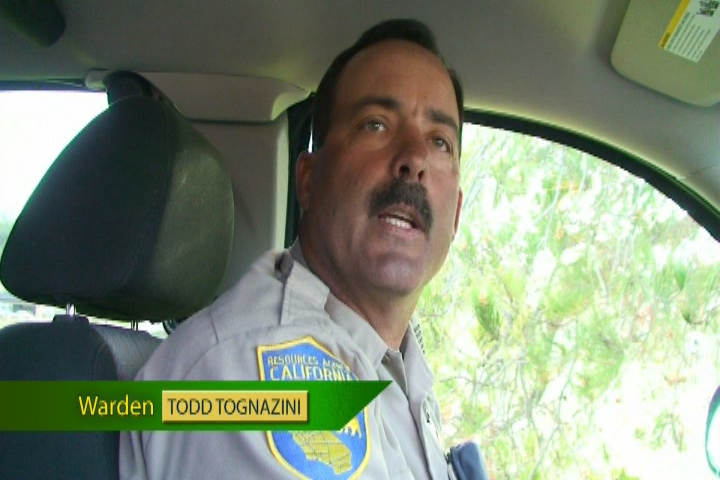
    This is the original image from a DVD version of a documentary I worked on:


    Yes, it's supposed to look like that. The DVD is encoded in anamorphic widescreen, when means it takes a 16x9 image and squeezes it to fit inside a 4x3 frame. Your DVD player can then un-squeeze the image back to 16x9 for widescreen TVs.


    This is the video upscaled to 720p using FFMPEG:


    Notice the color shift? It's subtle. It's most prominent on the lower-third graphic and the warden's face.

    So, why is this happening? Basically, SD video conforms to a broadcast standard known as bt.601. HD video conforms to a very slightly different standard known as bt.709 (otherwise known as Rec.709). FFMPEG does not automatically correct for the differences between the two standards, and this results in a color/brightness shift.

    Luckily, you can force the conversion by adding colormatrix=bt601:bt709 to the filters entry, like so:

    ffmpeg -i "inputvideo.mp4" -vf  "scale=1280:720:flags=spline, colormatrix=bt601:bt709" -c:v dnxhd -profile:v dnxhr_hqx -pix_fmt yuv422p10le -c:a pcm_s16le "outputvideo.mxf"

    and the result is this:


    Viola! Image fixed.

    However, don't use this filter unless you see a color shift. Otherwise, you might end up creating a color shift where one didn't exist before. Oh, and you can also convert the other direction as well if you're downscaling to SD from an HD video; just switch the options around:

    colormatrix=bt709:bt601

    Bottom line? Always check your exports before sending them out or dropping them in your edit timeline. You'll save yourself a lot of work later trying to manually correct them.


    Color shifts in Adobe products


    Update: the ProRes color shift I had up here before is gone in current nightly builds of FFMPEG. If you're still stuck on an older build that creates a color shift when the exported file is viewed in Premiere Pro or After Effects, use the prores_ks encoder rather than prores, and it'll correct the issue.

    This glitch is a bit of a puzzler, frankly. Basically, FFMPEG's DNxHD/HR exports have a color shift, but only in After Effects and Premiere Pro.

    This is really subtle, so I'm going to zoom in.

    Here's the original:


    And here's the DNxHD/HR encode viewed in After Effects:


    If you still can't see it, use your left and right arrow keys (or tap on the pictures if you're on a mobile device) to move back and forth between the images. Basically there's a slight green/yellow shift.

    Now, here's the kicker. If I import these files into DaVinci Resolve, they look identical.

    So, what the heck? I'm not entirely sure. If I had to guess, I'd say that FFMPEG is generating metadata that Adobe programs don't like, but it could be something else.


    Fortunately, after testing and Googling, I've figured out how to fix the color shifts.

    All you have to do is change the container format to .mxf instead of .mov:

    ffmpeg -i "inputvideo.mov" -c:v dnxhd -profile:v dnxhr_hqx -c:a pcm_s16le "outputfile.mxf"

    And this is the result:


    The only issue with the DNxHD/HR solution is that oddly enough, FFMPEG-generated .mxf files don't work in Resolve (and Assimilate Scratch Play). Resolve will refuse to load them, and Scratch Play will load but will only play the audio from the file. Adobe programs will handle them just fine. However, Resolve and Scratch Play will recognize and play back the .mov files with no color shift issues. 

    So, yeah. Weird.

    Saturday, December 1, 2018

    Tutorial - Using FFMPEG for DNxHD/DNxHR encoding, resizing, and batch encoding

    Before I begin, I'd like to acknowledge Jon Hall, whose recently deceased web page taught me how to set up FFMPEG in my system path. Also, a shoutout to /u/kichigai on the Reddit /r/editors subreddit for his excellent FFMPEG for editors FAQ:

    https://www.reddit.com/r/editors/wiki/ffmpeg

    If you want a comprehensive look at FFMPEG for a bunch of editing tasks, the above link is the way to go. If you want a video tutorial for a comprehensive FFMPEG setup, check out my tutorial for setting up FFMPEG 32-bit (along with an alternate install method for AVISynth+).

    Or, you could try setting up both the 32-bit and 64-bit versions of FFMPEG (along with AVISynth+) at the same time.


    BIG DISCLAIMER: This process may not work, may crash, or do other things to your system. Virus scanning all files is strongly encouraged, but not a 100% guarantee of safety.

    You have been warned. 

    Also, this tutorial is for Windows 10. Most of the steps work for other OSes, but I won't cover the differences here.


    Regardless, I'm going to assume for the rest of this post that you already have FFMPEG installed.

    First, let's start with a quick review of an FFMPEG command. Note that the line below doesn't actually run as written; this is just to show you the basic structure of the command:

    ffmpeg -i "inputvideo.mp4" -c:v videocodec -c:a audiocodec "outputvideofile.mp4"

    Simple enough, right? -i for input, -c:v for video codec, -c:a for audio codec, and then the name of the output file. There's a bunch of other options you can put in amongst this, but basically, this is the way the command is structured.


    DNxHD, DNxHR, ProRes and Cineform are all what are known as "intermediate codecs". This means that they're designed to be used to transcode footage from other sources into a form that's easy for video editing programs to work with while maintaining quality. So, unlike most h.264 implimentations, they focus on low CPU usage, retaining as much detail as possible,  and an ability to be re-compressed several times without significant loss in quality. They have larger bitrates than consumer video codecs, but they still represent a significant space savings over fully uncompressed video.

    DNxHD and DNxHR are Avid's intermediate codecs, designed to work well with Avid Media Composer, and as competition for ProRes. They have roughly equivalent quality to ProRes, but, like Media Composer, are organized in a more complicated manner.


    DNxHD


    DNxHD is the first variant of Avid's intermediate codec, and focuses (as the name suggests) on high-definition resolutions. It works great, but has an incredibly unintuitive naming system for different quality levels and resolutions based on the overall bitrate of the video. If you really want to take a look at the full list, check out this Wikipedia page:

    https://en.wikipedia.org/wiki/List_of_Avid_DNxHD_resolutions

    In FFMPEG, you need to set the bitrate properly in order for the built-in DNxHD encoder to work. Here's an example command using a 1280x720 h.264 .mp4 file running at 29.97fps:

    ffmpeg -i "inputvideo.mp4" -c:v dnxhd -b:v 110M -pix_fmt yuv422p -c:a pcm_s16le "outputvideo.mxf"

    Using the list of resolutions, we find that is the correct bitrate to output an 8-bit 422 chroma subsampled 720p video at 29.97fps is 110 megabits, which is denoted by that "110M" setting in the command.

    Unfortunately, the official list of bitrates isn't exact. For example, looking at the list, you might assume that if you wanted to do 10-bit instead of 8-bit, you would think that you just had to change the colorspace to yuv422p10le (like we do for ProRes) and keep the bitrate the same. However, that will give you an error. Luckily, DNxHD errors in FFMPEG will list the correct range of supported bitrates. Let's take a look (cropped to relevant section and cleaned up a bit for readability):

    Frame size: 1280x720p; bitrate: 90Mbps; pixel format: yuv422p10
    Frame size: 1280x720p; bitrate: 180Mbps; pixel format: yuv422p10
    Frame size: 1280x720p; bitrate: 220Mbps; pixel format: yuv422p10
    Frame size: 1280x720p; bitrate: 90Mbps; pixel format: yuv422p
    Frame size: 1280x720p; bitrate: 110Mbps; pixel format: yuv422p
    Frame size: 1280x720p; bitrate: 180Mbps; pixel format: yuv422p
    Frame size: 1280x720p; bitrate: 220Mbps; pixel format: yuv422p
    Frame size: 1280x720p; bitrate: 60Mbps; pixel format: yuv422p
    Frame size: 1280x720p; bitrate: 75Mbps; pixel format: yuv422p
    Frame size: 1280x720p; bitrate: 120Mbps; pixel format: yuv422p
    Frame size: 1280x720p; bitrate: 145Mbps; pixel format: yuv422p

    Unfortunately, this list doesn't display framerates, but you'll find that these bitrates work for any framerate within the same frame size and pixel format. In this case, the answer for 10-bit 720p/29.97fps is 180M. So, the command for a 10-bit output would look like this:

    ffmpeg -i "inputvideo.mp4" -c:v dnxhd -b:v 180M -pix_fmt yuv422p10le -c:a pcm_s16le "outputvideo.mxf"

    Just for reference, here's the complete list that FFMPEG spits out:

    Frame size: 1920x1080p; bitrate: 175Mbps; pixel format: yuv422p10
    Frame size: 1920x1080p; bitrate: 185Mbps; pixel format: yuv422p10
    Frame size: 1920x1080p; bitrate: 365Mbps; pixel format: yuv422p10
    Frame size: 1920x1080p; bitrate: 440Mbps; pixel format: yuv422p10
    Frame size: 1920x1080p; bitrate: 115Mbps; pixel format: yuv422p
    Frame size: 1920x1080p; bitrate: 120Mbps; pixel format: yuv422p
    Frame size: 1920x1080p; bitrate: 145Mbps; pixel format: yuv422p
    Frame size: 1920x1080p; bitrate: 240Mbps; pixel format: yuv422p
    Frame size: 1920x1080p; bitrate: 290Mbps; pixel format: yuv422p
    Frame size: 1920x1080p; bitrate: 175Mbps; pixel format: yuv422p
    Frame size: 1920x1080p; bitrate: 185Mbps; pixel format: yuv422p
    Frame size: 1920x1080p; bitrate: 220Mbps; pixel format: yuv422p
    Frame size: 1920x1080p; bitrate: 365Mbps; pixel format: yuv422p
    Frame size: 1920x1080p; bitrate: 440Mbps; pixel format: yuv422p
    Frame size: 1920x1080i; bitrate: 185Mbps; pixel format: yuv422p10
    Frame size: 1920x1080i; bitrate: 220Mbps; pixel format: yuv422p10
    Frame size: 1920x1080i; bitrate: 120Mbps; pixel format: yuv422p
    Frame size: 1920x1080i; bitrate: 145Mbps; pixel format: yuv422p
    Frame size: 1920x1080i; bitrate: 185Mbps; pixel format: yuv422p
    Frame size: 1920x1080i; bitrate: 220Mbps; pixel format: yuv422p
    Frame size: 1440x1080i; bitrate: 120Mbps; pixel format: yuv422p
    Frame size: 1440x1080i; bitrate: 145Mbps; pixel format: yuv422p
    Frame size: 1280x720p; bitrate: 90Mbps; pixel format: yuv422p10
    Frame size: 1280x720p; bitrate: 180Mbps; pixel format: yuv422p10
    Frame size: 1280x720p; bitrate: 220Mbps; pixel format: yuv422p10
    Frame size: 1280x720p; bitrate: 90Mbps; pixel format: yuv422p
    Frame size: 1280x720p; bitrate: 110Mbps; pixel format: yuv422p
    Frame size: 1280x720p; bitrate: 180Mbps; pixel format: yuv422p
    Frame size: 1280x720p; bitrate: 220Mbps; pixel format: yuv422p
    Frame size: 1280x720p; bitrate: 60Mbps; pixel format: yuv422p
    Frame size: 1280x720p; bitrate: 75Mbps; pixel format: yuv422p
    Frame size: 1280x720p; bitrate: 120Mbps; pixel format: yuv422p
    Frame size: 1280x720p; bitrate: 145Mbps; pixel format: yuv422p
    Frame size: 1920x1080p; bitrate: 36Mbps; pixel format: yuv422p
    Frame size: 1920x1080p; bitrate: 45Mbps; pixel format: yuv422p
    Frame size: 1920x1080p; bitrate: 75Mbps; pixel format: yuv422p
    Frame size: 1920x1080p; bitrate: 90Mbps; pixel format: yuv422p
    Frame size: 1920x1080p; bitrate: 350Mbps; pixel format: yuv444p10, gbrp10
    Frame size: 1920x1080p; bitrate: 390Mbps; pixel format: yuv444p10, gbrp10
    Frame size: 1920x1080p; bitrate: 440Mbps; pixel format: yuv444p10, gbrp10
    Frame size: 1920x1080p; bitrate: 730Mbps; pixel format: yuv444p10, gbrp10
    Frame size: 1920x1080p; bitrate: 880Mbps; pixel format: yuv444p10, gbrp10
    Frame size: 960x720p; bitrate: 42Mbps; pixel format: yuv422p
    Frame size: 960x720p; bitrate: 60Mbps; pixel format: yuv422p
    Frame size: 960x720p; bitrate: 75Mbps; pixel format: yuv422p
    Frame size: 960x720p; bitrate: 115Mbps; pixel format: yuv422p
    Frame size: 1440x1080p; bitrate: 63Mbps; pixel format: yuv422p
    Frame size: 1440x1080p; bitrate: 84Mbps; pixel format: yuv422p
    Frame size: 1440x1080p; bitrate: 100Mbps; pixel format: yuv422p
    Frame size: 1440x1080p; bitrate: 110Mbps; pixel format: yuv422p
    Frame size: 1440x1080i; bitrate: 80Mbps; pixel format: yuv422p
    Frame size: 1440x1080i; bitrate: 90Mbps; pixel format: yuv422p
    Frame size: 1440x1080i; bitrate: 100Mbps; pixel format: yuv422p
    Frame size: 1440x1080i; bitrate: 110Mbps; pixel format: yuv422p
    You'll notice some 10-bit 444 color profiles in the 1920x1080p section. Don't use those unless you're coming from a 444 source, or you're wasting hard drive space.

    DNxHR


    So what about DNxHR? This is the more modern variant of DNxHD that supports a wider range of resolutions and color options. More importantly, it's way simpler to work with.

    There's no need to specify bitrate, it will automatically use the correct one based on your input file. Unfortunately, most HR codec variants are only 8-bit, and will give an error if you try to convert to a different bit depth. The options for DNxHR are:

    LB (roughly equivalent to ProRes Proxy)
    SQ (roughly equivalent to ProRes LT)
    HQ (roughly equivalent to ProRes 422)
    HQX (roughly equivalent to ProRes 422HQ)
    444 (you guessed it, roughly equivalent to ProRes 444)

    Both the 444 and HQX variants use 10-bit color in HD or less, and either 10 or 12-bit color at 2K/UHD/4k resolutions. LB through HQX will always use 422 chroma subsampling, 444 will always use, well, 444 chroma subsampling. Still Confusing? You bet.

    What's worse is that FFMPEG won't actually encode to 12-bit DNxHR HQX/444 or ProRes 4444XQ, it only supports 10-bit color depth.

    That all said, here's a command that will give the same video quality as the first DNxHD command above, but using DNxHR:

    ffmpeg -i "inputvideo.mp4" -c:v dnxhd  -profile:v dnxhr_hq -pix_fmt yuv422p -c:a pcm_s16le "outputvideo.mxf"

    Notice how the codec variant is specified at the end of the profile option with an underscore before it.

    If you wanted to transcode to HQX 10bit from a file with a different bitdepth/colorspace, you would do something like:

    ffmpeg -i "inputvideo.mp4" -c:v dnxhd -profile:v dnxhr_hqx -pix_fmt yuv422p10le -c:a pcm_s16le "outputvideo.mxf"

    To go to 10-bit 444, you would need to give it a 2K or larger resolution file and do:

    ffmpeg -i "inputvideo.mp4" -c:v dnxhd -profile:v dnxhr_444 -pix_fmt rgb24 -c:a pcm_s16le "outputvideo.mxf"

    As before, you generally don't want to use 444 unless you're coming from a 444 colorspace file, or a raw capture format that FFMPEG can understand. Otherwise, it's a waste of storage space, and is much slower to encode.

    Oh, and if you're wondering how the FFMPEG DNxHD/HR encoder compares to the equivalent presets in Adobe Media Encoder, know that it's very close, but just slightly softer.

    Wednesday, October 31, 2018

    Tutorial - Installing 64-bit and 32-bit AVISynth+, QTGMC, and FFMPEG side by side

    Hey folks - just wanted to let you know that this tutorial is now officially outdated.  I'm leaving it up here are for up historical interest, but here's a link to a post that I will maintain from this point forward with the current instructions for setting up AVISynth and QTGMC:


    ============================================


    So, it turns out I made a mistake. I assumed that QTGMC still didn't work properly in 64-bit AVISynth, even though it had been over a year since I looked into it.

    Not only does it work, it actually gives a 10%-20% speed boost during rendering.

    However, there is one particular hitch that holds it back a bit: AvsPMod 64-bit throws up error messages when you use the video preview function. It's not a deal-breaker, but it's annoying. Hopefully, a newer version will come out soon. In the meantime, in the interest of both correcting my error and of finally putting the setup tutorial videos to rest, I'm going to show how to install and run the 32 and 64-bit versions of AVISynth+, QTGMC and FFMPEG side by side.


    BIG DISCLAIMER: This process may not work, may crash, or do other things to your system. Always check your files before submitting/uploading them.

    Virus scan everything you download. It's not a 100% guarantee that you'll avoid getting a malware infection, but it's a lot better than not checking at all.

    You have been warned. 

    Also, this tutorial is for Windows 10. Most of the steps work for previous versions of Windows, but may require slight modifications. Users of MacOS and other OSes should look elsewhere.


    Here's the video version of the tutorial:


    Also, I will be rushing through some of the initial steps for 32-bit AVISynth+, so if you'd like a little more depth, check out my original tutorial first, or check out my video version of that tutorial:


    BIG DISCLAIMER: This process may not work, may crash, or do other things to your system. Virus scanning all files is strongly encouraged, but not a 100% guarantee of safety.

    You have been warned. 

    If you're on a deadline (and using Premiere Pro, After Effects, or Final Cut Pro) probably your best best is to use a paid plugin like FieldsKit. And no, they aren't paying me to say that.

    Also, this tutorial is for Windows 10. Most of the steps work for previous versions of Windows, but may require slight modifications. Users of MacOS and other OSes should look elsewhere.


    First of all, AVISynth+ installs both the 32-bit and 64-bit versions by default. You can grab it from here:

    https://github.com/pinterf/AviSynthPlus/releases

    Then, we'll need to get all the filters (plugins) needed:

    FFMPEGSource

    11/6/2018 Update: looks like Jiangmin antivirus is currently flagging FFMpegSource with a warning on VirusTotal. Given that no other antivirus engines have spotted anything, I'm cautiously calling this a false positive, especially because one of the top search results for Jiangmin on Google is a post about the problems with reporting false positives to them.

    QTGMC

    Don't forget to get all the "Core Plugins", along with 32-bit FFTW3 library as well.


    If you need to sharpen the image, I recommend LimitedSharpen (Technically "LimitedSharpenFaster")

    With all the AVISynth filters and scripts grabbed, it's time to get the supporting software:

    AvsPMod

    This is like an IDE for AVISynth scripts, and is pretty much essential IMO. Be sure to grab both the 32-bit and 64-bit versions.

    FFMPEG

    Update: since Zeranoe has shut down, I will be recommending compiling 32-bit FFMPEG from source using https://github.com/m-ab-s/media-autobuild_suite . Since this tutorial is getting a little long in the tooth any ways, I'll just leave this here as a placeholder until I create a newer and better version. You can get the 64-bit version here: https://www.gyan.dev/ffmpeg/builds/ffmpeg-git-essentials.zip 

    7-zip

    If you don't have 7-zip already installed, you won't be able to open many of the downloaded archives. The version you get here doesn't matter, so maybe just do the 64-bit one.

    After virus scanning everything, install:

    7-zip (if needed)
    AVISynth+

    Just follow the default options in both cases. Then, go to the 32-bit plugins directory for AVISynth+. On my system, this is:

    C:\Program Files(x86)\AVISynth+\plugins+\

    Extract all .dll and .avsi files to the plugins directory from all plugins EXCEPT the fftw-3*.dll archive. If there's a choice between an x86 and an x64 version, use the x86 version. If there's a choice between AVX, AVX2 and a version without either, you'll need to know what instruction sets your processor supports. CPU-Z can tell you this if you're not sure.

    Once that's done, do the same with the 64-bit versions of the plugins, except copy those to the "plugins64+" folder.

    Now, open the fftw-3*.dll archive, then (as noted on the QTGMC page) extract the libfftw3f-3.dll file. Make a copy of it and rename it as "FFTW3.dll". Place the files "libfftw3f-3.dll" and "FFTW3.dll" in the SysWow64 folder.

    Extract the 32-bit AvsPMod archive to wherever you want to run it from, and then extract the 64-bit version to a different directory. If you want to associate .avs files with AvsPMod, I would generally recommend doing so with the 32-bit version, but if you work primarily in 64-bit, then you should probably use that version.

    Now, for the tricky part: setting up both the 32 and 64-bit versions of FFMPEG to run from any directory on your computer. We're going to do this with batch files. Also, kudos to Jon Hall's tutorial blog post on FFMPEG setup (currently defunct) for showing me basically how to do this.

    First, open the 32-bit FFMPEG archive, then open the long-named folder within.

    Create a folder somewhere on your system called "ffmpeg32". Personally, I put it in Program Files (x86).

    Copy the "bin" and other folders from the opened FFMPEG archive to your ffmpeg32 folder.

    Create a new text file, then rename it to "ffmpeg32.bat".

    Right-click on the batch file and select "edit".

    Write some version of the following into the notepad window:

    @ECHO OFF
    "C:\Program Files (x86)\ffmpeg32\bin\ffmpeg.exe" %*
    Adjust the path as needed depending on where you installed 32-bit FFMPEG. Save, close batch file. Keep the explorer window showing the contents of your ffmpeg32 folder open.

    Do the above steps for the 64-bit version of FFMPEG, except change the folder name to "ffmpeg64" and the batch file name to "ffmpeg64.bat". In the batch file, put some version of the following:

    @ECHO OFF
    "C:\Program Files\ffmpeg64\bin\ffmpeg.exe" %*
    As you can see, I put ffmpeg64 in Program Files, but again, you can put it wherever you want.

    Save, and close the batch file. Keep the explorer window showing the contents of your ffmpeg64 folder open.

    Now, to add both versions of FFMPEG to your system path:
    1. Press the Windows and R keys.
    2. Type "control sysdm.cpl,,3". 
    3. Click "Run".
    4. Click on "Environment Variables".
    5. Select "Path" under "System variables" and click "Edit".
    6. Go to where your ffmpeg32.bat file is. 
    7. Select and copy the folder's path address from the address bar towards the top of the window.
    8. Back in the "Edit environment variable" window, click "New" and paste in the folder path. 
    9.  Repeat steps 6-8, but use the location of your ffmpeg64.bat file.
    10. Click OK on all the windows you opened to get here.
    To make sure everything worked, open a command prompt (or Powershell, whatever your preference), then type ffmpeg32. If a long list of options is shown after a moment, cool. Do the same with ffmpeg64. If neither shows an error message like "command not found", you should be good to go.

    Now, whenever you make your .bat file to run ffmpeg, you can specify whether you want to run the 32-bit version of both FFMPEG and AVISynth by calling ffmpeg32, like so:

        ffmpeg32 -i "videofile.avs" -c:v prores -profile:v 3 -pix_fmt yuv422p10le "output.mov"

    If you want to run the 64-bit versions of FFMPEG and AVISynth, just call ffmpeg64 instead, like so:

        ffmpeg64 -i "videofile.avs" -c:v prores -profile:v 3 -pix_fmt yuv422p10le "output.mov"

    PS: FFMPEG doesn't generate "official" ProRes files, so if it will be the last stop in your export chain, consider using a different workflow if the file is going to a major TV channel. Some channels have reportedly (on Reddit's /r/editors subreddit) said that FFMPEG ProRes files won't pass QC with them.

    DVD conversion workflow update

    Hey folks, it's been a while.  Since the last time I posted, I started a job teaching film and video classes at a pretty awesome local c...